In the Replen. Control Data List, you can use the Active Filters to display only the Item or Replen. Item Store Rec that you want to view or update.
To save filters for Items
- Define the filters needed.
- Click the Save
Current Filter action.
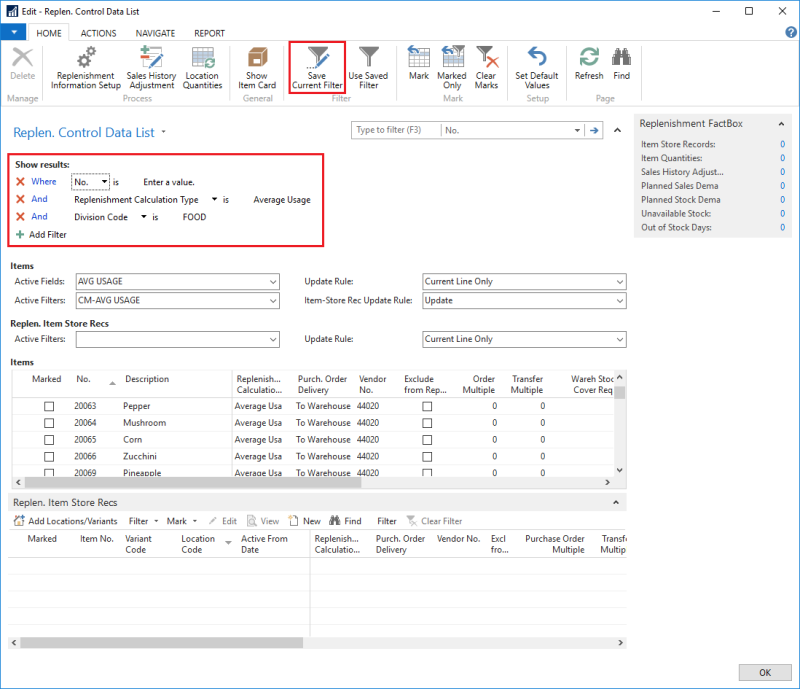
- In the Replen. Control Data Filters page, fill in the Code and Description for the filter:
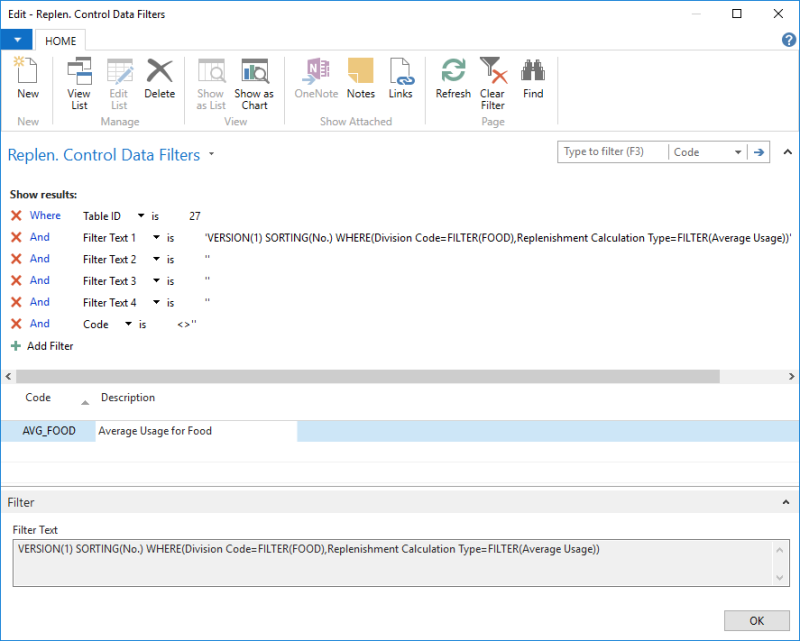
- Click OK to save the filter.
To use filters on Items
- On the Home action menu, in the Filter group, click Use
Saved Filter.
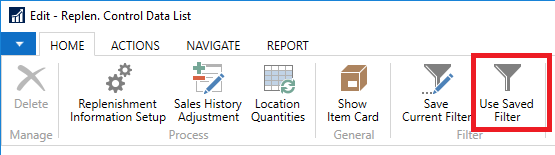
- Select a filter, and click OK to use the filter.
To save filters on Replen. Item Store Recs
- On the Replen. Item Store Recs FastTab, click Filter to define the filters.
- Once the filters are set, click OK.
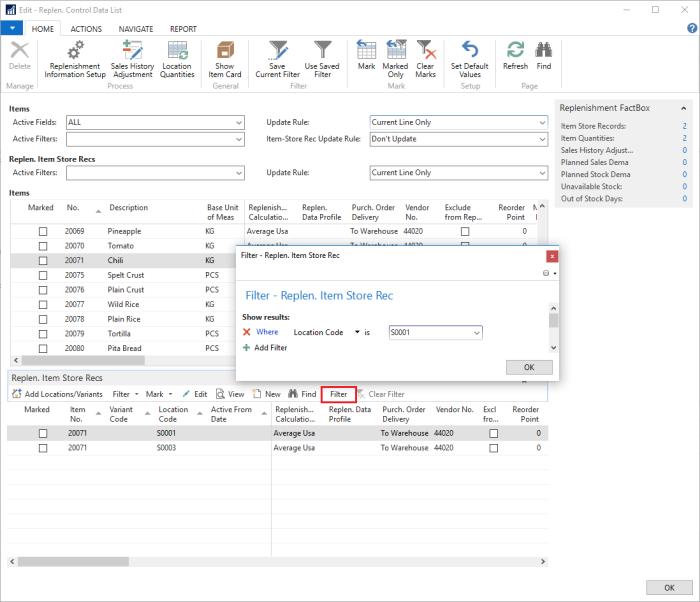
- On the Replen. Item Store Recs FastTab, click the arrow beside Filter and select Save
Current Filter.

- In the Replen. Control Data Filters page, fill in the Code and Description for the filter.
- Click OK to save the filter.
To use filters on Replen. Item Store Recs
- On the Replen. Item Store Recs FastTab, click the arrow beside Filter and select Use Saved Filter.

- Select a filter, and click OK to use the filter.
Note: You can also set up the default Active Filters by clicking the Set Default Values action on the Home menu in the Replen. Control Data List page.
See Also
Replenishment Control Data List
How to: Define Active Field Views